Video Editing
How I Made This Insane Line Effect!
Create Kirmada's popular 3d glowing line effect step by step. Using the free Saber plugin you will learn how to draw paths on solid layers and produce the final cinematic effect.
By Ediskool
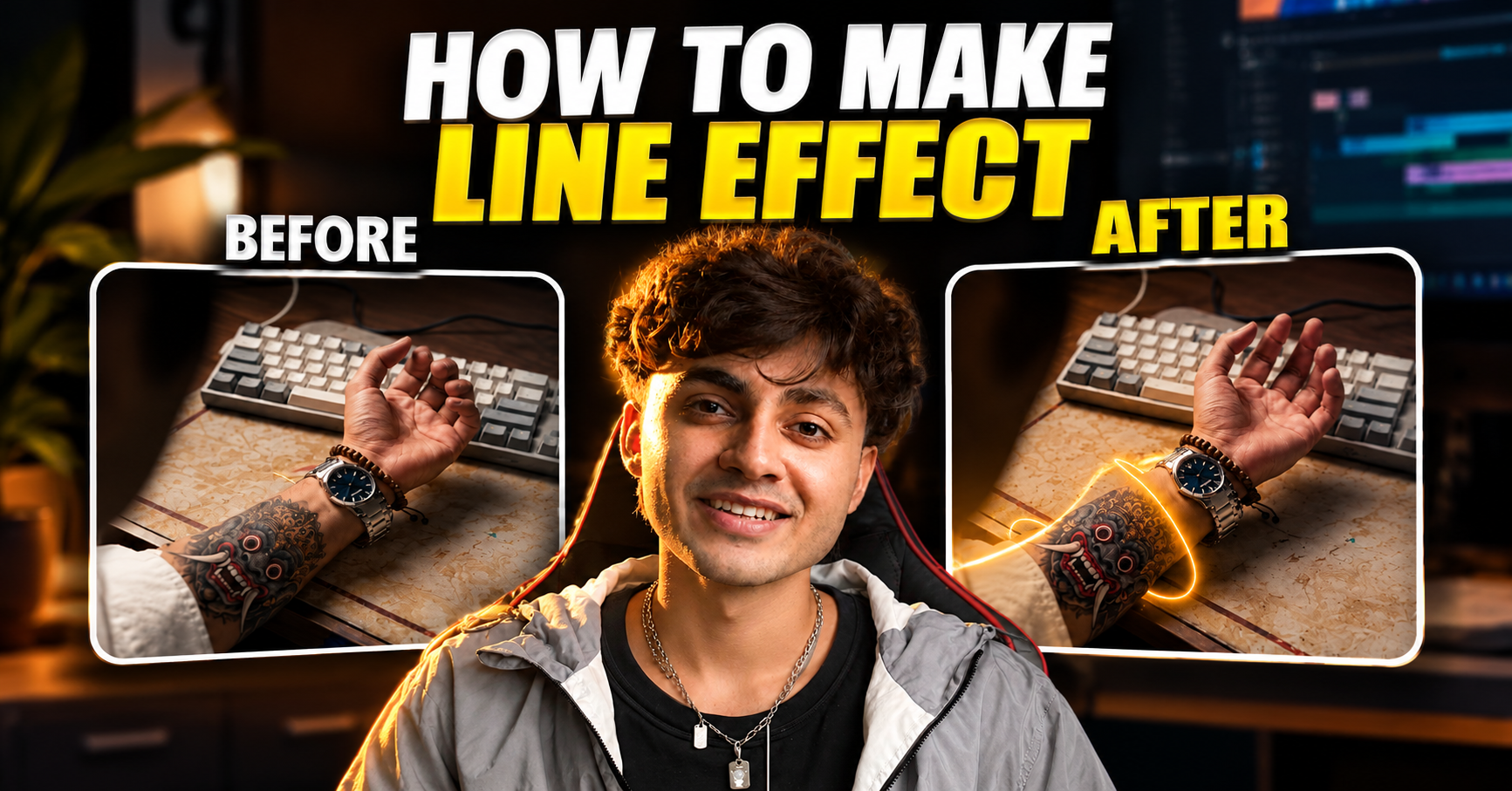
How to Create Kirmada’s Viral Line Effect Using the Saber Plugin
Table of Contents
- Introduction: Kirmada's Viral Line Effect
- Video Preparation: Making 2D Look 3D
- Step-by-Step Guide: Creating the Line Effect
- Step 1: Setting Up the Solid Layer
- Step 2: Drawing the Path with the Pen Tool
- Step 3: Applying and Configuring the Saber Plugin
- Step 4: Color and Style Selection
- Step 5: Adjusting the Blending Mode
- Step 6: Animating the Line Effect
- How to Get the Saber Plugin & Free Preset
- Frequently Asked Questions (FAQ)
Introduction: Kirmada's Viral Line Effect
You must have seen Kirmada's video recently. It has a lot of views, and many people asked how we create that line effect. Let's get started.
Video Preparation: Making 2D Look 3D
To create this effect, you first need to record a video that looks 3D, but is actually 2D. Alright, here is our clip. To create this entire effect, we are going to use only one plugin called Saber. Don't worry, I will provide you with its link.
Step-by-Step Guide: Creating the Line Effect
src="https://ediskool-assets-782989862721.s3.ap-south-1.amazonaws.com/uploads/blog-content/1791450831665-463867357.png" loading="lazy" decoding="async"
- Step 1: Setting Up the Solid Layer
- Here is our clip. What you simply need to do first is create a solid layer here. Okay? Once created, reduce its opacity.
- Step 2: Drawing the Path with the Pen Tool
- I want the line to emerge from near our hand and come forward. So, how are we going to do that? You simply need to go to the Pen tool. From here, you can draw whatever lines you want. I am going to draw something like this right here. Okay?
- Step 3: Applying and Configuring the Saber Plugin
- Now you simply need to apply an effect named Saber. Let's drag and drop it onto the layer. Once applied, you will have to change one or two settings here. Go to Customize Core, tap on Saber, and here select Layer Mask. Perfect! Look, it has come into the full shape here.
- Want to explore more effects, masking techniques, and motion graphics workflows? Check out our After Effects and visual effects course to learn more practical techniques for creating cinematic edits.
- Step 4: Color and Style Selection
- We will keep its color slightly warm and a bit hard. Let's make it orange and select this layer. Perfect! Now, you can select many styles there. I am simply going to use Haze here.
- Step 5: Adjusting the Blending Mode
- Now, finally, you have to change the layer blending mode. Here you can do anything like Add, Lighter, or whatever. I am going to keep it as Screen.
- Step 6: Animating the Line Effect
- For more control over animated lines and paths, Adobe's official guide to animating shape paths and masks explains how keyframes can control the movement and shape of paths in After Effects.
- We have added the lines here, but we haven't animated anything yet. So what are we going to do for that?
- Go to the end of the clip.
- Tap on End Offset.
- Go to the start of the clip and add a keyframe, setting this value to zero.
Now let's play and see. Perfect! So our effect is complete here.
Once your line animation is complete, you can experiment with transitions, visual effects, and color grading to make your edits more engaging. Explore our complete video editing course to build skills across Premiere Pro and After Effects.
How to Get the Saber Plugin & Free Preset
So this was just a small effect. You can download the free Saber plugin and our custom drag-and-drop preset directly by clicking the link below:
[Download Saber Plugin & Preset Here]
If you want to learn in-depth editing and master more cinematic VFX, make sure to subscribe to our channel @Learn_With_Shobhit
and follow us on Instagram at hey.edition_
We regularly share advanced tutorials and editing breakdowns to help you level up your skills!
If you want to learn in-depth editing and master more cinematic VFX...
Frequently Asked Questions (FAQ)
Q1: What plugin is required to create Kirmada's line effect?
You only need one plugin called the Saber plugin to create this line effect.
Q2: What type of video clip works best for this line effect?
You need to record a video clip that looks 3D, but is actually 2D.
Q3: How do you draw the lines where the effect will appear?
You use the Pen tool on a solid layer (with reduced opacity) to draw whatever lines you want, such as emerging from near a hand and coming forward.
Q4: Which core setting must be changed inside the Saber plugin?
Under Customize Core, you need to tap on Saber and change the Core Type to Layer Mask so the effect follows the drawn shape.
Q5: How do you animate the line effect so it moves?
You animate it using End Offset. Set a keyframe at the start with the value set to zero, and set your end keyframe at the end of the clip.
Q6: What blending mode is used for the Saber line effect layer?
While you can use Add or Lighter, keeping the layer blending mode as Screen works great.
Conclusion
The glow of the 3D lines in the 2D video takes the look to a whole new level, and the saber plugin makes it so easy to create. Doing basic things such as tracing with the Pen tool or changing keyframes of the End Offset, you can create Kirmada's viral effect in seconds. Download the custom preset, try Screen blending mode and Add blending mode and enjoy.
Your Next Creative Skill Starts Here
One tutorial can give you an idea. Consistent learning turns that idea into a skill.
Stay connected with EDISKOOL for practical knowledge, creative resources, AI tools, editing workflows, and fresh inspiration for your next project.
Get quick tips, creative inspiration, AI discoveries, and editing ideas.
Follow practical conversations around AI, editing, content creation, and the creator economy.
Telegram
Access useful editing resources, templates, plugins, PDFs, workflow guides, and EDISKOOL updates.
EDISKOOL Courses
Go beyond tutorials with practical learning in video editing, motion graphics, AI creativity, and content creation.
Disclaimer
This tutorial is for educational and informational purposes only. We do not host, distribute, or sell the Saber plugin or its custom presets. The Saber plugin is a third-party tool that has been developed by Video Copilot, and all copyrights and trademarks of this software belong to their respective owners. All the following screenshots represent our personal editing workflow.
Last Updated: October 8, 2026
Reviewed and maintained by professional video editors at Ediskool to ensure technical precision across changing motion graphics workflows, blend modes, and social media reel standards.