Video Editing
How to Color Grade Log Footage in DaVinci Resolve (Step-by-Step)
Learn how to color grade Log footage in DaVinci Resolve from scratch. This step-by-step beginner's guide covers Log-to-Rec.709 conversion using LUTs, primary color wheels (Lift, Gamma, Gain, Offset), node structure, and how to create a simple cinematic Teal & Orange look.
By Ediskool
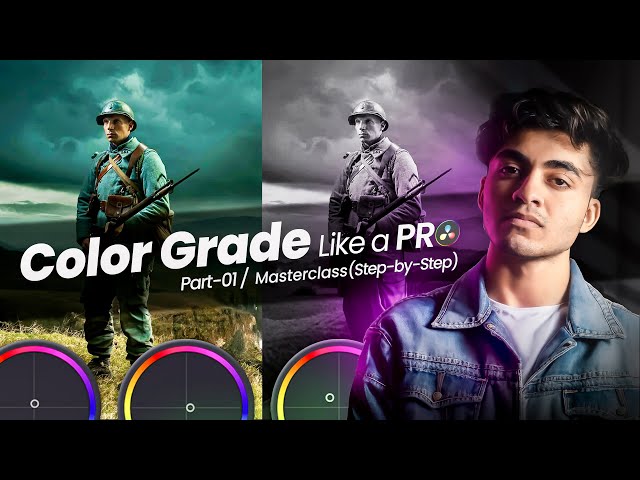
How to Color Grade Log Footage in DaVinci Resolve (Step-by-Step)
Table of Contents
- Introduction
- Why Choose DaVinci Resolve for Color Grading?
- Difference from Premiere Pro & After Effects
- Choosing Between the Free & Studio Versions
- Pre-Installation System Checks
- Preparing Log Footage for Color Grading
- Log Footage vs. Normal Footage
- Identifying Camera Log Profiles
- Converting Log Footage Using LUTs
- Setting Up Your Project & Timeline Correctly
- Importing Vertical & Horizontal Footage
- Matching Frame Rates & Resolution
- Navigating the Media, Edit, Fusion, and Color Pages
- Mastering Tone Controls: Lift, Gamma, Gain, and Offset
- Controlling Shadows with Lift
- Balancing Midtones with Gamma
- Shaping Highlights with Gain
- Global Adjustments with Offset
- Creating a Basic Cinematic Look
- Building the Teal & Orange Look
- Setting the Mood with Temperature & Tint
- Managing Contrast, Pivot, and Details
- Using Color Boost, Saturation, and Tonal Sliders
- Organizing Your Workflow with Nodes
- Why Nodes Beat Layers
- Recommended Node Structure for Beginners
- Best Practices for Consistent Color Grading
- Before-and-After Comparison Techniques
- Avoiding Over-Reliance on LUTs
- Maintaining Color Continuity Across Clips
- Next Steps: Advanced Tools to Explore
- Frequently Asked Questions (FAQ)
- Conclusion
Good editing doesn’t guarantee an impactful video, even when the elements are well edited. With good DaVinci Resolve color grading, you can make your footage cinematic, balanced, and professional-looking. Conversely, incorrect contrast, crushed shadows, or over-saturation will make the whole video unusable.
Color correction can be done in Premiere Pro and After Effects, but in some circumstances DaVinci Resolve provides better control of shadows, highlights, midtones, LUTs, nodes, glow, and selective coloring. This is another reason why DaVinci Resolve has become popular with beginners and professional colourists alike.
This tutorial will take you through the steps of installing DaVinci Resolve, importing footage, converting Log footage to regular color, and explain the Lift-Gamma-Gain-Offset setup. As a bonus, you will also learn how to achieve a very simple cinematic look with blue shadow tones and warm highlights.
src="https://ediskool-assets-782989862721.s3.ap-south-1.amazonaws.com/uploads/blog-content/1791752305313-435486964.jpg" loading="lazy" decoding="async"
Why Choose DaVinci Resolve for Color Grading?
DaVinci Resolve offers both editing, color grading, and VFX tools. This workflow, however, will be limited to color grading since its Color page offers detailed controls for correcting images.
Difference from Premiere Pro and After Effects
While Premiere and After Effects both have color grading tools, Resolve has a much more streamlined color workflow, with color wheels, nodes, LUTs, scopes, and effects all in one place.
You can change shadows, midtones, and highlights independently. Skin can be smoothed, a replacement sky can be added, and a glow can be added, for example. There is a node-based VFX system on the Fusion page, and the editing can be switched to a traditional timeline on the Edit page.
Choosing Between the Free and Studio Versions
DaVinci Resolve Free is also powerful enough for beginner-level color grading. You can do correction, nodes, color wheels, and other tools with it.
The Studio version is paid and includes Magic Mask, some advanced effects, better high-resolution support, and additional features. Before starting, downloading the Free version is the better option. Be sure to check the current feature comparison and system requirements on the official Blackmagic Design website before purchasing.
Checks Before Download and Installation
src="https://ediskool-assets-782989862721.s3.ap-south-1.amazonaws.com/uploads/blog-content/1791752305364-746376309.jpg" loading="lazy" decoding="async"
Open a browser window, go to the official DaVinci Resolve website, and click the Free download option. Complete the required registration information, and then download the installer based on your operating system (Windows, macOS, or Linux). You can then complete the installation.
Sufficient storage, RAM, and graphics support are essential for high-resolution footage. Playback of 4K clips may be slow on weaker systems. In such cases, an optimized media or proxy workflow can help.
Prepare Log Footage for Color Grading
src="https://ediskool-assets-782989862721.s3.ap-south-1.amazonaws.com/uploads/blog-content/1791752305423-208871829.jpg" loading="lazy" decoding="async"
Difference Between Log Footage and Normal Footage
Phone or standard camera footage often looks pre-processed and finished right away. Log footage initially looks faded, low-contrast, and low-saturation. This is not bad footage; rather, it retains more tonal detail for grading.
For example, a bright sky in normal footage can quickly turn white. The Log profile helps preserve more information in the highlights and shadows. You will only get this benefit if the exposure is correct and the Log-to-normal conversion is done properly.
Before working with log footage, it also helps to understand the basics of creating a cinematic look. If you're editing videos on your phone, check out our guide on mobile color grading to learn how color adjustments can improve the overall look of your footage.
Identify Camera Log Profiles
Every camera may name its Log profile differently. S-Log in Sony cameras and D-Log in DJI cameras are common examples. Changing the camera can also change the LUT or technical conversion needed.
Note down the camera profile name before shooting. If you do not have Log footage, basic correction and cinematic color grading can also be performed on normal footage.
Convert Log Footage to Normal Color Using a LUT
Open the LUTs panel in the Color page of DaVinci Resolve. Choose the correct LUT according to your camera profile and drag and drop it onto the initial node. After applying the LUT, normal contrast and color response will become visible in the footage.
Do not consider the LUT as the final creative grade. It is merely a technical starting point. After this, manually correct the exposure, contrast, temperature, and color balance, because the lighting in every shot is different.
Set Up the Project and Footage Correctly
src="https://ediskool-assets-782989862721.s3.ap-south-1.amazonaws.com/uploads/blog-content/1791752305484-390691630.jpg" loading="lazy" decoding="async"
Import Vertical and Horizontal Footage
To import clips in the Media page, drag and drop them into the Media Pool. DaVinci Resolve supports both vertical and horizontal videos. A vertical timeline is commonly used for social media reels, while a horizontal timeline is used for YouTube videos.
Before placing clips of different orientations into a single project, check the timeline format. If framing is incorrect, the resolution and timeline settings can be changed in Project Settings.
Match Frame Rate and Resolution
Resolve may display a prompt if the clip’s frame rate and the timeline’s frame rate differ. Choose the correct option among 24, 25, 30, or 60 fps before starting the project. An incorrect frame rate can make motion appear uneven.
Check the resolution in Project Settings as well. A 4K timeline can be chosen for 4K clips, but keep system performance and the current limits of the Free version in mind. Review playback, framing, and image orientation before grading.
Understand Media, Edit, Fusion, and Color Panels
The Media page is for managing files and clips. The Edit page is used for trimming and timeline work. The Fusion page is for VFX and compositing, while the Color page is the main hub of this entire workflow.
The Color page displays the Gallery, Media Pool, clips, and nodes. References can be maintained by saving stills in the Gallery. Scopes such as the waveform and vectorscope will later help inspect exposure and color balance.
Improve the Image with Lift, Gamma, Gain, and Offset
src="https://ediskool-assets-782989862721.s3.ap-south-1.amazonaws.com/uploads/blog-content/1791752305538-953745800.jpg" loading="lazy" decoding="async"
Understanding color wheels is the most crucial part of a DaVinci Resolve tutorial for beginners. These controls work on different tonal areas of the image.
Control Shadows with Lift
Lift primarily affects the dark parts and shadows of an image. Background darkness, shadow on hair, and dark areas of clothing are examples.
Increasing Lift too much will crush shadows and will start to lack detail. Adding a little blue or teal to the shadows will give the footage a nice cinematic feeling. Be conservative with your adjustments, and compare with the original footage regularly.
Balance Midtones with Gamma
Gamma works on midtones. It can help balance the overall brightness of the face, clothing, and subject. It can also be used to help separate the subject from the background.
If you go too far on the colour tones, it will start to look unnatural; keep the footage neutral first and then start to add any creative looks. Never think of Gamma as a substitute for contrast or saturation.
Shape Highlights with Gain
Gain controls the bright parts and highlights of the image. The sky, light sources, and glossy backgrounds are its primary areas. Adding a subtle yellow or warm tone to the highlights can provide cinematic warmth.
Increasing Gain too much can clip bright areas. For this reason, monitor the sky and skin tones carefully. Highlights can be reduced to recover details if necessary.
Change the Entire Image with Offset
Offset affects shadows, midtones, and highlights simultaneously. It is used to change overall brightness or the color cast across the entire frame.
Making Offset overly yellow or blue will make the image look unnatural. Reserve it for global corrections, while working on specific tonal areas using Lift, Gamma, and Gain.
Apply Basic Cinematic Color Grading
Create a Teal and Orange Look
To create a teal-orange look, first add a light blue or teal to the shadows in the Lift wheel. After this, add a subtle yellow or warm tone to the highlights in the Gain wheel. Do not pull the color wheels too far from the center; otherwise, skin tones and the background will look artificial.
This look is not necessary for every scene. Blue shadows can be more effective in night footage, while warm highlights may look better in daylight footage. Use Resolve’s bypass or comparison control for before-and-after comparisons; keyboard shortcuts may vary depending on the version.
Shift the Mood with Temperature and Tint
Moving Temperature to the blue side makes the image appear cool. Moving it to the yellow side makes the frame warm. Tint alters the color balance between green and magenta.
A subtle green tint can be used for a horror or tense mood. A pink or magenta tint gives a different mood to the skin and lights. Double-clicking on a control is the common method to reset it.
Control Contrast, Pivot, and Details
Increasing Contrast heightens the difference between dark and bright areas. Pivot shifts the tonal center of that contrast. Contrast and pivot can be used creatively in day-to-night effects.
Increasing Details can make edges and perceived sharpness look clearer. However, facial pimples and skin texture may also stand out. Decreasing Details softens the image, so avoid applying it excessively to the entire frame.
Color Boost, Saturation, and Tonal Sliders
Decreasing Saturation makes the image look black and white. Increasing Saturation strengthens all colors, whereas Color Boost can enhance colors in a relatively subtle manner.
Increasing Shadows can bring back some detail in dark areas. Lowering Highlights keeps bright parts controlled. Avoid excessive saturation and highlights in night footage, as noise and artificial colors can show up quickly.
Organize Your Grading Workflow with Nodes
DaVinci Resolve uses nodes instead of layers. Think of each node as a separate processing step. Adding one node after another keeps the correction clean and editable.
The shortcut Alt+S is commonly used to create a new serial node. In a practical structure:
- The first node can be kept for the Log-to-normal LUT,
- The second node for exposure and tonal correction,
- The third node for creative grade,
- And the fourth node for skin or selective color correction.
Keep a separate node for finishing effects like Glow. This makes it easy to adjust the effect’s intensity later. Instead of creating too many nodes, give each node a clear purpose.
Maintain a Consistent Color Grading Workflow
src="https://ediskool-assets-782989862721.s3.ap-south-1.amazonaws.com/uploads/blog-content/1791752305600-697578804.jpg" loading="lazy" decoding="async"
Perform Before-and-After Comparisons
Compare the graded clip with the original after every change. Check whether skin tones look natural, detail is preserved in the shadows, and highlights are not clipping.
The color cast across the frame should be intentional. Noise can increase after grading in low-light footage, so inspect dark areas carefully.
Do Not Rely Solely on LUTs and Presets
A LUT is a good starting point for technical conversion. To create a creative look, adjust Lift, Gamma, Gain, temperature, contrast, and saturation according to the footage.
The same LUT will not give identical results on different cameras or under different lighting. Always perform a manual check of exposure, skin tones, and highlights after applying a preset.
Maintain Continuity Between Clips
Compare the exposure and white balance of all shots in a multi-clip project. Giving indoor, outdoor, daylight, and night clips the exact same setting can ruin continuity.
A reference still can be saved in the Gallery to compare against other shots. Always check the lighting and camera profile of a clip before copying its look.
Advanced Tools to Learn Next
Once you get to grips with the basic controls, you can move on to skin smoothing and isolating skin tones. For example, you can choose the qualifier tool to pick a color and then switch it to a different hue (turning yellow clothes blue, for example).
Power windows, masks, sky replacement, and atmosphere effects come into play in the next stage. Stabilization, sharpening, and day-to-night conversion are also tools worth learning. Practicing with scopes allows for accurate exposure and color balance adjustments instead of relying on visual estimation.
Frequently Asked Questions (FAQ)
Q1: Is DaVinci Resolve Free really sufficient for professional color grading?
Yes. The free DaVinci Resolve package does give the user access to the full primary color wheels, secondary color wheels, nodes, curves, scopes, and all the basic LUTs in the system. Export resolution of the free version is capped at 4K.
Q2: What is the difference between Color Correction and Color Grading?
Always Correct First: Color Correction! These edits include Contrast, Exposure & White Balance. Correcting an image removes any inconsistencies so a colorist can then put his or her creative eyes on a pass/fail basis. If an image is not technically correct, it is not gradeable.
Q3: Why should I use Nodes instead of Layers for color grading?
Nodes, on the other hand, are processed in a linear pipeline, not a stack like layers. The node-based processing gives you very granular, non-destructive control that allows you to grab adjustments in isolation (white balance, LUTs, skin tone adjustments, etc.) from prior adjustments.
Q4: Should I use a LUT or Color Space Transform (CST) to convert Log footage?
A LUT is a fixed mathematical preset set for certain camera profiles, while the Color Space Transform (CST) is a camera profile–adaptive, node–based control inside Resolve that converts the color gamuts and gamma curves dynamically, without clipping data, for better quality and more flexibility.
Q5: How do I prevent noise when grading low-light or Log footage?
Don't over-boost the dark areas by lifting the shadows with the Lift control or by raising saturation too high in dark parts of the image. Check the exposure as you go using your scopes (Waveform and Parade) to keep blacks you are correctly exposed, with a bit of space left over close to zero.
Conclusion
DaVinci Resolve Free: As a starting point for your color grading, the DaVinci Resolve Free version does a decent job. Before you start grading Log footage, be sure to select the appropriate LUT or technical conversion. Gradually control the shadows with Lift, the midrange with Gamma, the highlights with Gain, and the whole image with Offset.
For a filmic feel, go for a delicate blue shadow and warm highlights. Do incremental adjustments for Temperature, Tint, Contrast, Details, Color Boost, and Saturation. With all corrections done in separate Nodes, the workflow is simple.
Some training exercises: Grab one Log clip and one normal clip. Build both with a different node structure, and compare the original to the graded. Remember that the goal of good color grading isn’t to make things all dramatic – it’s to add to the subject, the mood, the story.
Your Next Creative Skill Starts Here
One tutorial can give you an idea. Consistent learning turns that idea into a skill.
Stay connected with EDISKOOL for practical knowledge, creative resources, AI tools, editing workflows, and fresh inspiration for your next project.
Get quick tips, creative inspiration, AI discoveries, and editing ideas.
Follow practical conversations around AI, editing, content creation, and the creator economy.
Telegram
Access useful editing resources, templates, plugins, PDFs, workflow guides, and EDISKOOL updates.
EDISKOOL Courses
Go beyond tutorials with practical learning in video editing, motion graphics, AI creativity, and content creation.
Disclaimer: This guide is created for educational and informational purposes only. Features, keyboard shortcuts, and UI layouts referenced apply to DaVinci Resolve (Free & Studio versions by Blackmagic Design) and may vary across software versions or updates. Always check the official Blackmagic Design website for updated system requirements and feature availability.
Last Updated
Last Updated: September 23, 2026
Reviewed regularly to keep the guidance relevant as DaVinci Resolve, color grading tools, LUT workflows, camera Log profiles, and professional video editing techniques continue to evolve.