Video Editing
How to Retouch Skin & Fix Blemishes in DaVinci Resolve (Part 2 Guide)
Learn how to naturally smooth skin and remove individual acne spots in DaVinci Resolve without creating a fake, plastic look. Master qualifiers, tracked masks, and detail controls for horizontal videos and Instagram Reels.
By Ediskool
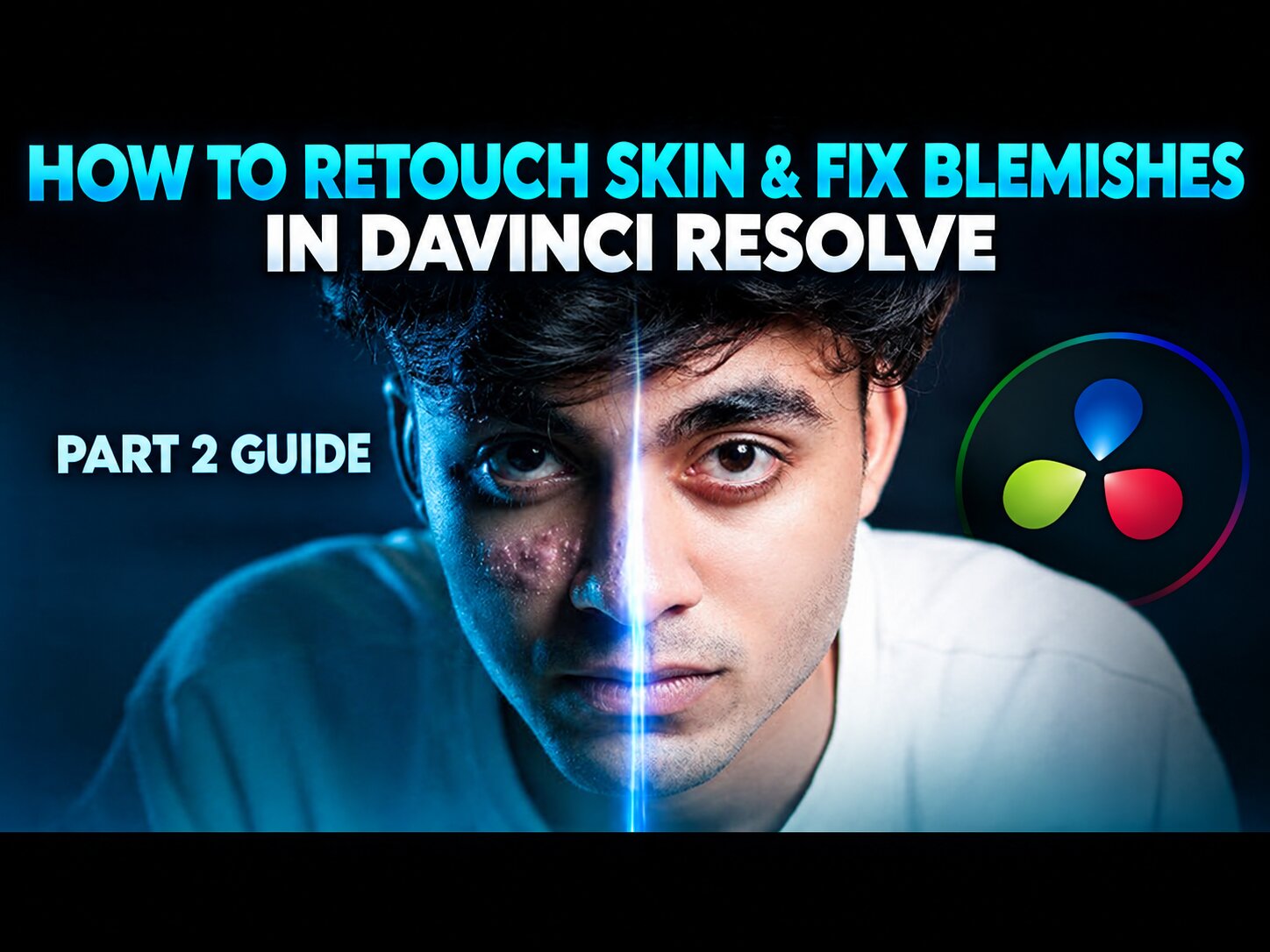
How to Retouch Skin & Fix Blemishes in DaVinci Resolve (Part 2 Guide)
Table of Contents
- Introduction
- Prepare Footage for Natural Skin Retouching
- Use Soft, Consistent Lighting Before Editing
- Match the Timeline to Your Video Format
- Apply the Correct LUT or Color Treatment First
- Isolate Skin for DaVinci Resolve Skin Smoothing
- Select Skin with the Qualifier Tool
- Protect Eyes, Hair, and Facial Edges
- Smooth Skin Without Creating an Artificial Face
- Reduce Detail and Sharpness Selectively
- Lower Contrast and Add Gentle Blur
- Remove Individual Acne and Blemishes with Tracked Masks
- Create a Small Mask Around the Blemish
- Track the Mask Through Movement
- Blend the Spot with Detail, Blur, and Color
- Adapt the Workflow for Reels and Phone Footage
- Correct the Vertical Timeline and Phone Color
- Use Pen Masks for Larger Facial Areas
- Avoid Retouching Mistakes That Make Skin Look Fake
- Do Not Blur the Entire Face
- Do Not Remove Every Blemish
- Check Tracking, Edges, and Color Before Export
- Conclusion
Smooth Skin & Remove Acne – DaVinci Resolve Masterclass | Full Beginner Series – Part 2
DaVinci Resolve Skin Smoothing for Natural Acne Removal in Video
Harsh lighting can reveal every pore, rash, and pimple on camera. DaVinci Resolve skin smoothing reduces texture without covering the whole face in heavy blur. With the right selection, masking, and tracking, you can create cleaner skin while keeping eyes, hair, and facial edges sharp.
This workflow works for short films, YouTube videos, Instagram Reels, and phone footage. It improves the look of skin in recorded video, but it does not treat acne or change real skin medically. The result depends on good lighting, quality footage, and restrained corrections.
Prepare Footage for Natural Skin Retouching in DaVinci Resolve
Lighting and image quality affect the final result more than any single setting. A well-lit face needs less correction and keeps more natural detail.
Use Soft, Consistent Lighting Before Editing
Soft front light smooths out your skin when you're before the Color page. Hard shadows and side light or light above you will really emphasize the pores and blemishes.
Try to have a big, soft light close to the camera if you can. View the clip with and without light to determine which issues are caused by lighting. Don't expect to be able to edit out issues in footage that is underexposed, dark, or noisy.
Match the Timeline to Your Video Format
The same skin retouching method works for horizontal camera footage and vertical phone clips. Set the project resolution to match the final format before you finish the grade.
Use a vertical timeline for Reels and other portrait videos. Check your correction at normal viewing size, not only while zoomed in on the Color page. A skin effect that looks subtle at 200% may look too strong on a phone screen.
Apply the Correct LUT or Color Treatment First
Handle the camera profile before smoothing skin. For example, Sony log footage may need a Sony LUT or a matching color transform before you adjust texture.
Create a separate node for the initial color treatment. Balance exposure, contrast, shadows, and color first, then begin the skin work. Keeping the original node separate makes it easier to compare the footage and reset a correction.
Isolate Skin for DaVinci Resolve Skin Smoothing
Global blur softens more than skin. It can damage eyelashes, eyebrows, hair, lips, and the edges of the face, so isolate the target area before reducing detail.
Select Skin with the Qualifier Tool
src="https://ediskool-assets-782989862721.s3.ap-south-1.amazonaws.com/uploads/blog-content/1791752306302-199054534.jpg" loading="lazy" decoding="async"
On the Color page, use the qualifier to sample the main skin tone. The selection preview shows which parts of the image will receive the correction.
Adjust Clean Black and Clean White to remove unwanted areas and include the skin tones you need. Add a small amount of Blur Radius to soften rough selection edges. Check the matte preview before changing detail or contrast.
Protect Eyes, Hair, and Facial Edges
Look closely at the eyes, eyelashes, eyebrows, hairline, lips, and nostrils. If these areas appear in the selection, refine it before applying blur.
You can combine the qualifier with a mask for better control. Recheck the selection at several points in the clip, especially when the subject turns or the lighting changes. Separate nodes also help keep each correction easy to disable and adjust.
Smooth Skin Without Creating an Artificial Face
The main correction uses three controlled changes: lower skin detail, reduce harsh contrast, and add light blur. The goal is to soften distracting texture, not erase every pore.
Reduce Detail and Sharpness Selectively
Apply the button using the Details control on the chosen skin location. Use as a starting point for the focus that is extreme, such as -100, but this usually leaves the face looking like plastic.
Try -40 as a beginning point and then go up or down slightly. -40 to -50 may be acceptable for textured shots, but each shot will require a different setting. Always draw sharp detail into the entire image, not blindly down to the knee, as you will see blurring the hair and face.
Lower Contrast and Add Gentle Blur
A slight lowering of contrast may help promote softer, less yellow, or less harsh skin. Just lift up the shadows a little when the face becomes too flat or rough-looking, but make sure there's enough contrast to give the face some form.
.46 Don't add blur until you've isolated the skin. The example workflow applies a vertical clip that has a blur value of approximately 0.53, but that is not an exact number. Use the least amount that would blend the correction into surrounding skin without eliminating all natural texture.
Remove Individual Acne and Blemishes with Tracked Masks
For a single flaw, instead of a more powerful softening all over the face, you need to correct it locally. A circular or pen mask allows you to edit only one place, without changing the remaining epidermis.
Create a Small Mask Around the Blemish
Place a circular mask over the acne spot and make it only a little bigger than the blemish. Any mask that is too thick on the skin can leave a patch.
Size your feather so that it will feather into the adjacent areas. Adjust it until the desired blemish is selected with the mask preview. For irregular areas, choose the pen mask rather than forcing a circle to fit.
Track the Mask Through Movement
Attach the mask to the tracked side of the tracker so it moves with the face. Begin at a frame where the scratch is well defined and then track forward to see the result.
Drone and shake will cause the tracker to be lost. You could try to limit the tracking range, resize the mask, or change the position manually. A pen mask with keyframes might have better results on a turning head or a changing face.
Blend the Spot with Detail, Blur, and Color
Within the tracked mask, simplify to about -40 or –50, then soften a little. If there's a predominant red cast in the blemish, turn the Hue vs. Saturation and Curves knobs down on the red.
Moderate the correction. Don't eliminate all the marks, as they appear unnatural, but a light reduction won't distort the face beyond recognition. Refine the feather again if the mask is producing a circular outline.
Adapt the Workflow for Reels and Phone Footage
Phone cameras often add strong sharpening and color, which can make pores and redness stand out. Vertical clips also place the face close to the frame, so small errors are easier to notice.
Correct the Vertical Timeline and Phone Color
Before stopping the grade, set the timeline to the intended vertical resolution. Then do the correct LUT or base correction to bring the image into control, then tone down too much red, contrast, or brightness.
Gently lift the shadows if the face appears hard. Do not light the skin to the point that it no longer matches the neck, ears, or hands. Adjust the color temperature first, then isolate the skin.
Use Pen Masks for Larger Facial Areas
Use a pen mask for a cheek, forehead, or jaw that won't quite make a circle. Place the tips near where you want them to hit on the face then soften a touch both inside and outside the mask.
Follow the mask when the person moves and ensure it doesn't mask eyes, lips, hair, or clothing. End up with reduced detail in rough areas, a little contrast, and a slight blur; then watch the clip full size on a mobile.
Avoid Retouching Mistakes That Make Skin Look Fake
Natural skin correction depends on restraint. A strong effect may look impressive while editing, but it can distract viewers once the clip plays at full speed.
Do Not Blur the Entire Face
Disable the node during a before-and-after check. If the face looks plastic or loses important detail, lower the effect. Keep separate nodes for skin smoothing and blemish removal so one setting does not do too much work.
Do Not Remove Every Blemish
Prioritize big, central, or distracting spots. Small texture often adds realism and doesn't need to be corrected.
Compare the original and modified videos. A good outcome will make the viewer less attentive to a blemish and less likely to notice the signs of natural skin.
Check Tracking, Edges, and Color Before Export
Scrub through the clip looking for mask drift, hard edges, circular artifacts, or abrupt color changes. Watch the action closely.
Turn off each node to see its effect on the clip. Export a short test before doing a full export, then view it on the devices your viewers will use.
Frequently Asked Questions (FAQ)
Can this workflow fix bad lighting or dark footage?
No. Improper lighting and exposure make editing software unable to completely rescue the footage. Heavy shadows and hard side-lighting of the skin will accentuate the skin texture. To achieve the best result, use a large, soft light source close to the camera.
Why does my subject's face look "plastic" or fake?
This occurs for one of two reasons: you are blurring across the whole frame (which blurs harsh details like eyes and hair) or you are aggressively dropping the "Details" slider (for example: -100). Be conservative with dropping details (-40 / -50) and make sure you are applying any detail drops via a qualifier or mask that isolates the skin from the rest of the face.
Does this work for vertical phone footage on Instagram Reels or TikTok?
Yes. Just make sure your project's timeline is set to a vertical resolution before grading. Bear in mind that phone cameras often add extra sharpening and contrast, so you may want to cut back on any excess reds and contrast before proceeding with your skin smoothing nodes.
How do I fix a blemish when the subject is moving their head?
Track it with DaVinci Resolve's own tracker to stick your mask to the blemish. If the expression pulls off the tracker in high-speed motion, you can reduce the tracking range, resize your mask, or manually keyframe a pen mask to it.
Should I try to remove every single pore and pimple?
No. Blot out all of the marks and the photo will have the look of a mannequin. Only eliminate obvious, major objectionable marks with targeted masks, treat a few large textures, but ignore those very minor skin textures.
Conclusion
DaVinci Resolve skin smoothing is a sophisticated color workflow, not a smattering of heavy effects. Use soft lighting and clean footage as the foundation, choose the perfect color correction, isolate the skin, use moderate detail reduction, and leave the softening to blur.
For individual acne areas, use small tracked masks and colour correct if necessary. Keep eye, hair, lips and edge of face protected. View the original and colour-corrected footage at normal size, then export a short test to make sure the skin still looks natural.
Your Next Creative Skill Starts Here
One tutorial can give you an idea. Consistent learning turns that idea into a skill.
Stay connected with EDISKOOL for practical knowledge, creative resources, AI tools, editing workflows, and fresh inspiration for your next project.
Get quick tips, creative inspiration, AI discoveries, and editing ideas.
Follow practical conversations around AI, editing, content creation, and the creator economy.
Telegram
Access useful editing resources, templates, plugins, PDFs, workflow guides, and EDISKOOL updates.
EDISKOOL Courses
Go beyond tutorials with practical learning in video editing, motion graphics, AI creativity, and content creation.
Disclaimer
Not a Medical Treatment: The techniques described in this workflow are solely for digital video post-production. They are intended for visual enhancement or softening of the appearance of skin on video recordings and do not claim to medically treat, cure, or alter actual skin conditions, acne, or blemishes.
Footage Limitations:
The DaVinci Resolve editing tool is not perfect, and it cannot recover all the details in the video, especially if they are underexposed, noisy, or poorly lit. In addition, the tool can only do so much to fix the footage with regard to lighting, and the result will only be as good as the source files.
Last Updated: September 28, 2026
Reviewed regularly to maintain technical accuracy as DaVinci Resolve updates its Color Page, Qualifier tools, tracked masks, and vertical video formatting standards.
Ready to master natural video skin retouching without the fake plastic look? Let’s dive in.