Video Editing
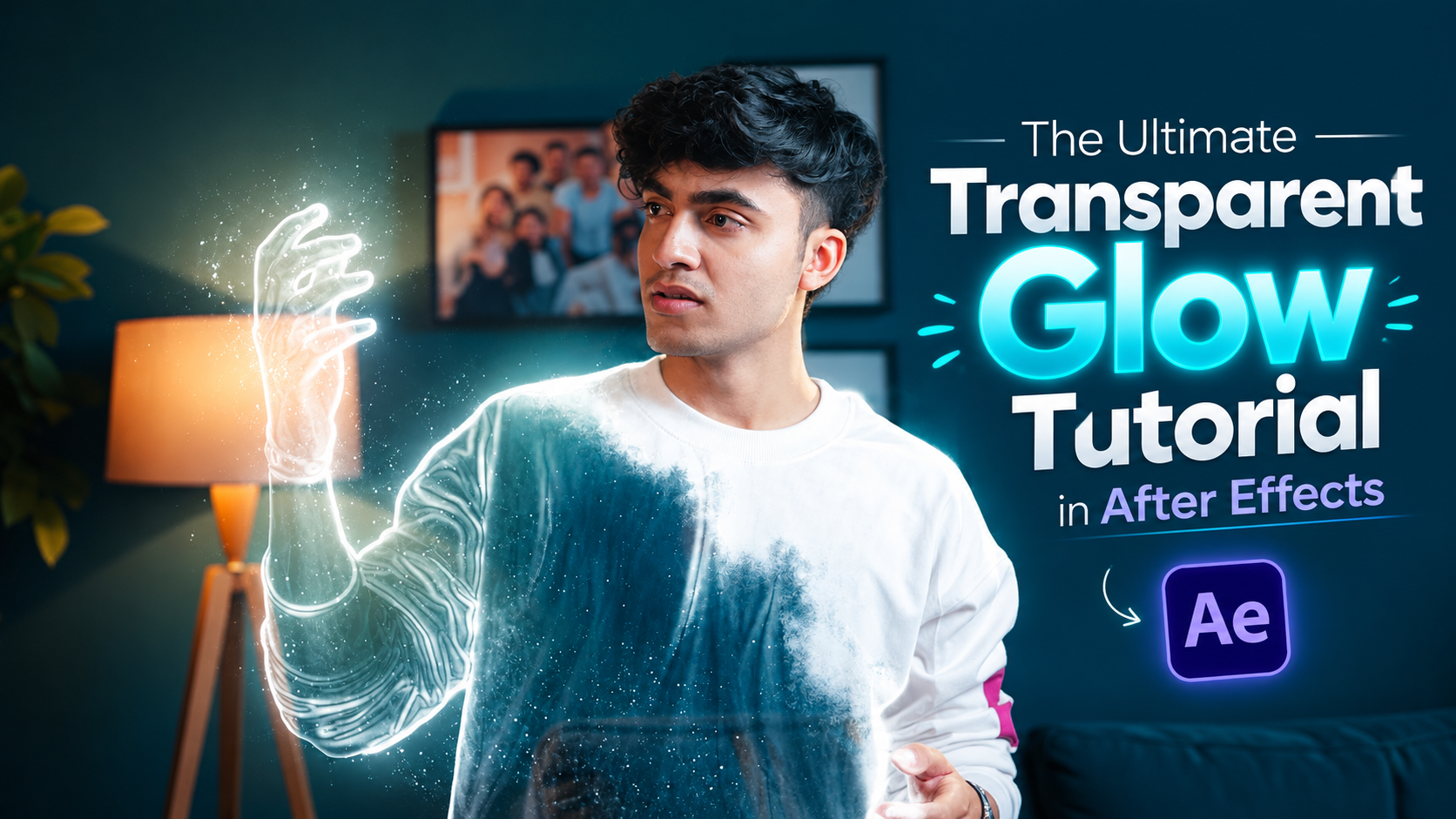
The Ultimate Transparent Glow Tutorial in After Effects
Creating a ghostly, transparent glowing character interacting with a real environment is a massive flex for any VFX artist. While it looks like high-budget Hollywood compositing, the secret lies in basic layering, edge detection, and distortion. Dive into this complete breakdown to build a realistic liquid edge glow from scratch.
By Ediskool
The Ultimate Transparent Glow Tutorial in After Effects
Table of Contents
- Mastering the Transparent Glow Effect in After Effects
- What you will need
- Step 1: Shoot your plates
- Step 2: Prep and slow your footage
- Step 3: Set up your layer stack
- Step 4: Build the transparent glow
- Step 5: Add melting distortion
- Step 6: Bring it to life with Fractal Noise
- Step 7: Final polish and clean-up
- Conclusion
- Frequently Asked Questions (FAQ)
- Disclaimer
Mastering the Transparent Glow Effect in After Effects
If you want to create a futuristic, AI-inspired hologram or a ghostly glowing character, you need a transparent glow effect. It looks incredibly complex. But breaking it down into simple layers makes it totally manageable. By the end of this guide, you will have a fully animated, glowing, and transparent character interacting with your scene.
Let's dive into how to pull this off using Adobe After Effects.
What you will need
Before you start, make sure you have your footage and a few specific tools ready.
- A camera on a sturdy tripod. The camera absolutely cannot move for this effect to work.
- Twixtor Pro for smooth slow-motion.
- Deep Glow to create that intense, luminous edge lighting.
Step 1: Shoot your plates
src="https://ediskool-assets-782989862721.s3.ap-south-1.amazonaws.com/uploads/blog-content/1791752304610-49072220.jpg" loading="lazy" decoding="async"This effect is achieved by combining different takes of the same space. These three plates can be shot without changing your position with the camera.
- Shoot a blank frame. Record the empty room with no one in it.
- Shoot your main subject. For example, have your actor sit or lie down on a couch.
- Shoot your "AI" character. Have your second actor walk in, sit down, and interact with the main subject.
Step 2: Prep and slow your footage
Import your clips into After Effects. You need to take only a quick clip for the effect. Use a quick clip from your video in which your characters merely sit and touch each other.
To give it a dreamy, slow-motion feel, apply Twixtor Pro.
- Apply Twixtor Pro to your clip.
- Change the Speed from 100 to 30.
- Select your clip and press U to reveal keyframes. Select the keyframe and press F9 to smooth it out.
- Set the Input Frame Rate to match your shooting frame rate. If you shot at 50 FPS, type in 50.
- In your settings, turn on Inverse w/ Smart Blend, set blending to Motion, turn off contrast enhancement, and switch the final toggle to ON.
Step 3: Set up your layer stack
src="https://ediskool-assets-782989862721.s3.ap-south-1.amazonaws.com/uploads/blog-content/1791752304674-280447227.jpg" loading="lazy" decoding="async"Separate your footage into three different layers: An empty background, the female "AI," and the main male role.
- Pre-compose your layers by pressing Ctrl+Shift+C.
- Duplicate your main composition so you have three total layers.
- Find an empty frame in your clip to use as the background. Cut it, right-click, and select Time, then choose Freeze Frame. This is your bottom layer.
- Select your top layer representing the male character. Use the Roto Brush Tool to mask him out completely.
- Grab the Refine Edge Tool to clean up the mask around his hair and hands.
- Once the mask is perfect, click Freeze in the Roto Brush panel.
Step 4: Build the transparent glow
src="https://ediskool-assets-782989862721.s3.ap-south-1.amazonaws.com/uploads/blog-content/1791752304734-593652470.jpg" loading="lazy" decoding="async"Now we shall turn the second character into a glowing hologram. Select the middle layer of the female character you have.
- Apply the Edge Detect effect.
- Drop the Edge Smooth setting down to 0 to get sharp, clean lines.
- Tweak the colors. Slightly increase the red values and decrease the thickness so the edges look crisp.
- Apply the Deep Glow effect on top of Edge Detect.
- Slightly increase the glow radius.
- Turn on the Unmult checkbox. This is required to make the dark areas of the layer transparent.
- Drag this glowing layer so it sits perfectly between your frozen background layer and your roto-brushed male character.
Step 5: Add melting distortion
A perfect glow looks a bit too digital. We want the environment behind the hologram to warp and distort.
- Go to Layer, choose New, and click Adjustment Layer. Place this layer just below your female character.
- Create a simple mask around the female character's position.
- Apply the Displacement Map effect to this adjustment layer.
- Under the Effect Controls, change Max Horizontal Displacement and Max Vertical Displacement to read from Source and Masks.
- Tweak the displacement values slightly. This creates a subtle melting movement on the background right behind the glowing character.
Step 6: Bring it to life with Fractal Noise
src="https://ediskool-assets-782989862721.s3.ap-south-1.amazonaws.com/uploads/blog-content/1791752304801-586979184.jpg" loading="lazy" decoding="async"To give the inside of the hologram some texture and movement, we will use animated noise.
- Duplicate your glowing female character layer.
- Delete the Edge Detect and Deep Glow effects from this duplicate.
- Apply the Fractal Noise effect.
- Lower the Brightness so it doesn't overpower the glow.
- Place a keyframe on Evolution at the very beginning of your timeline. Move forward in time and crank up the evolution to animate the noise.
- Check the box for Complexity and increase the value to add detailed texture.
- Open the layer's Opacity and drop it down so it blends nicely.
- Change the layer's blending mode to Normal.
If the edges of the noise mask look a little strange or cut off, simply expand your mask path to give it room to breathe.
Step 7: Final polish and cleanup
Sometimes stacking effects introduces small glitches. For example, you might notice a slight flicker near the character's foot where the layers intersect.
- To fix this, copy the original, unaffected footage. Paste it inside your outer layer stack, pre-compose it, and draw a tight mask just around the flickering foot. This patches the hole cleanly.
- To wrap up, add some subtle camera movement. Go to the beginning of your timeline, enable keyframes for Scale and Position, move to the end, and zoom in slightly. This adds a cinematic drift to your lock-off tripod shot.
You are all set. Hit render and enjoy your new transparent glow effect.
Conclusion
Landing a transparent liquid edge glow may seem scary when you first see the final footage, but once you put the steps into layers, it's actually a very satisfying method to use. Incorporate things like the cinematic drift, realistic distortion, and liquid slow-motion, and it can absolutely blow your videos away. Feel free to play around with the glow radius and displacement to get the right feeling for your scene. Just remember to keep pushing.
Frequently Asked Questions (FAQ)
Can I achieve this effect without Twixtor Pro?
Yes. While Twixtor Pro is fantastic for buttery-smooth slow-motion, you can use After Effects' built-in Pixel Motion or Time Warp effects. Just keep in mind that the blending might require a bit more manual tweaking to look flawless.
What if I don't have the Deep Glow plugin?
You can also get the same effect using native tools by stacking several default "Glow" effects. Use a low radius for the core. Duplicate it and add a larger radius and lower intensity to each to get a softer, more natural falloff.
Why is my background distorting weirdly in Step 5?
If your background appears distorted throughout and not just behind your character, review your mask on the Adjustment Layer. Also, ensure that Displacement Map is set to read from Source and Masks so your melting effect remains localized around your hologram.
My roto brush mask keeps flickering; how do I fix it?
If your edges are flickering, it's because the Roto Brush is no longer locked onto your subject's motion. Return to your base layer, go through the edges frame-by-frame to tighten them up (pay special attention to the fast-moving hands and tangled hair), and be sure to click the "Freeze" button before you continue with your main comp.
Your Next Creative Skill Starts Here
One tutorial can give you an idea. Consistent learning turns that idea into a skill.
Stay connected with EDISKOOL for practical knowledge, creative resources, AI tools, editing workflows, and fresh inspiration for your next project.
Get quick tips, creative inspiration, AI discoveries, and editing ideas.
Follow practical conversations around AI, editing, content creation, and the creator economy.
Telegram
Access useful editing resources, templates, plugins, PDFs, workflow guides, and EDISKOOL updates.
EDISKOOL Courses
Go beyond tutorials with practical learning in video editing, motion graphics, AI creativity, and content creation.
Disclaimer
This tutorial is intended for fun, education, and general education to empower artists with post-production skills. Use of software interfaces, locations of tools, and specific features described within this tutorial may be different based on your version of Adobe AE and third-party plugin versions, so refer to your software documentation for guidance on your specific environment. Save constantly, cache your renders, and always retain your raw originals.